Neovim Plugins Recommendations
Plugins I've installed in 2025
Almost one year into using Neovim, I've installed a lot of plugins.
Starting from the LazyVim distro, my Neovim configuration has come a long way.
In the amazing community that is the Neovim ecosystem, new plugins are being developed and released every day. Being an engineer, naturally one would be tempted to try those shiny new plugins. The question remains that whether they are good enough to stay in the config.
In this post, I'll list the plugins I've installed this year and are still using.
avante.nvim
With Cursor IDE entering the market, many have been amazed by the possibilities of AI-enabled IDEs.
It is no surprise that many people are looking for an alternative in Neovim.
avante.nvim provides AI assistance for neovim. Uses a prompt interface to communicate with large language models to generate code, documentation, and comments.
It supports multiple models, including openai, gemini and more.
Integrates with NeoVim to allow seamless file attaching to the prompt.
Provides a git diff view for the code suggestions by the LLM model, allowing the user to choose each suggestion hunk and apply it to the file.
clasp.nvim
Have you ever wanted to quickly move the position of the brackets in your code?
myFunc(arg1, arg2, arg3)
When we want to wrap the code with another function, what we do is:
myFunc2(myFunc(arg1, arg2, arg3)
Then we have to move the cursor to the end of the first function and insert the close bracket.
myFunc2(myFunc(arg1, arg2, arg3))
Here is clasp.nvim to the rescue!
It allows you to quickly wrap the close bracket to the next possible position.
Here is a demo of the plugin in action, yoinked from the
clasp.nvimREADME:
With clasp.nvim, you can now wrap the close bracket painlessly with a single keypress.
myFunc2(myFunc(arg1, arg2, arg3)
The default keymap is <c-l>, but you can change it to anything you like.
After one <c-l>:
myFunc2(myFunc)(arg1, arg2, arg3)
After two <c-l>:
myFunc2(myFunc(arg1, arg2, arg3))
Voila! You have now placed the close bracket in the correct position.
It is by no means life-changing plugin, but it is a great tool for QoL and productivity.
colorful-menu.nvim
This plugin is a complementary plugin to nvim-cmp and blink.cmp.
It provides a nicer UI for the completion menu, with a more colorful and visually appealing design.
Screenshot from the plugin's README
Out of the box, it supports the following programming languages:
- Rust
- Go
- TypeScript
- Lua
- C
- C++
- PHP
- Zig
- C#
- Python
- Dart
Here is another comparison of before and after in Go:
Before:
After:
It shows the type of the variable / type in the completion menu. For package names, it shows the package path on the right, which is quite useful when you have multiple packages with the same package name.
contextindent.nvim
If you work on markdown files, you will love this plugin.
It has always been a pain to indent code blocks in markdown files.
It provides a contextual indentation for a filetype embedded inside another type of file.
For example, if you have a embedded javascript inside a HTML file, you can indent the javascript code block correctly.
The demo below shows the indentation of embedded R language and Python language inside a markdown file.
Demo from the plugin's README
csvview.nvim
This plugin provides a nicer UI for the CSV file, especially when you have a large CSV file:
- Tabular view: shows the data in a tabular format, making it easier to read and navigate, especially when you have columns for days.
- Sticky header: keeps the header row at the top of the screen, making it easier to find the data you are looking for.
- Async loading: loads the data asynchronously, keeps the UI responsive even when the CSV file is large.
Demo from the plugin's README
d2-vim
Since I ditched mermaid.js, I have been using d2-vim to draw diagrams in neovim.
When not using the plguin, all the code is white. But when using it, the code is highlighted correctly and helps with readability.
When paring with overseer and the d2 cli live preview, it provides a nice workflow for drawing diagrams.
dropbar.nvim
Do you ever miss the breadcrumbs on the top of the buffer? I certainly do.
dropbar.nvim is a well-polished, IDE-like, highly-customizable winbar for Neovim with drop-down menu support.
Not only does it shows the current buffer path, but it also gather information from the lsp, and treesitter, such that it can show the current function, class, or variable.
Preview from the plugin's README
gx.nvim
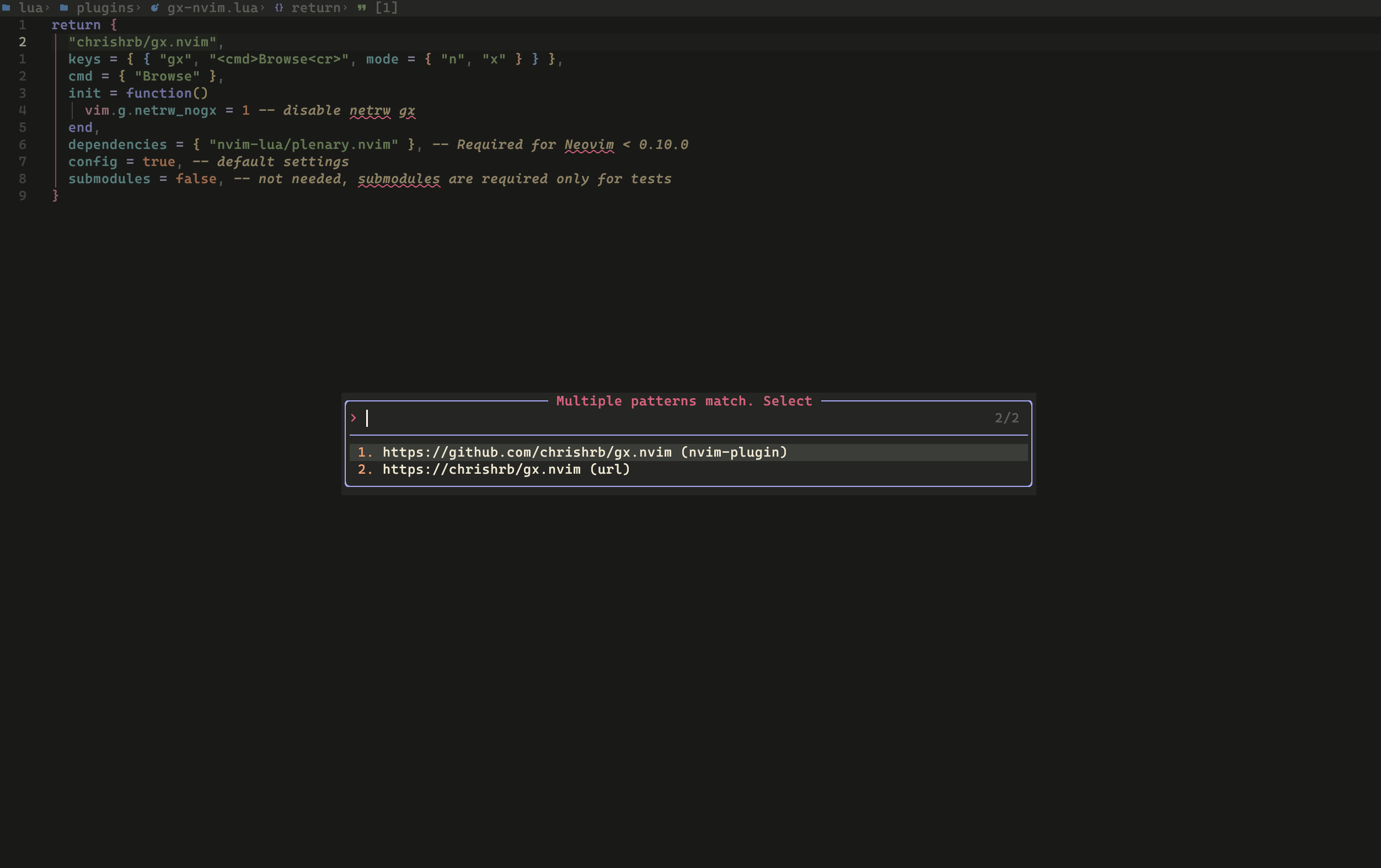
Check this plugin out for enhanced gx functionality, including:
gxwith your cursor on top of a plugin name to open the plugin github page in the browser- the word/selection is automatically searched on the web, if there is no url found under the cursor
harpoon
This is a famous plugin that allows you to pin files to a certain set of keymaps.
It is a great plugin for keeping track of files you are working on.
This is an example keymaps for the plugin yoinked from the [README]:
local harpoon = require("harpoon")

-- REQUIRED
harpoon:setup()
-- REQUIRED

vim.keymap.set("n", "<leader>a", function() harpoon:list():add() end)
vim.keymap.set("n", "<C-e>", function() harpoon.ui:toggle_quick_menu(harpoon:list()) end)

vim.keymap.set("n", "<C-h>", function() harpoon:list():select(1) end)
vim.keymap.set("n", "<C-t>", function() harpoon:list():select(2) end)
vim.keymap.set("n", "<C-n>", function() harpoon:list():select(3) end)
vim.keymap.set("n", "<C-s>", function() harpoon:list():select(4) end)

-- Toggle previous & next buffers stored within Harpoon list
vim.keymap.set("n", "<C-S-P>", function() harpoon:list():prev() end)
vim.keymap.set("n", "<C-S-N>", function() harpoon:list():next() end)
Note that this plugin does not come with a default keymap. You must install it and add your own keymaps.
Now you can use <leader>a to add a file to the harpoon list.
You can use <C-e> to toggle the quick menu. It shows the list of files in the harpoon list.
You can use <C-h>, <C-t>, <C-n>, and <C-s> to navigate through the list.
Bonus
Here is my personal config for harpoon, inspired by the LazyVim config:
return {
  "ThePrimeagen/harpoon",
  branch = "harpoon2",
  dependencies = { "nvim-lua/plenary.nvim" },
  config = true,
  opts = {
    settings = {
      sync_on_ui_close = true,
    },
  },
  keys = function()
    local keys = {
      {
        "<leader>ha",
        function()
          require("harpoon"):list():add()
        end,
        desc = "Add file to harpoon",
      },
      {
        "<leader>hl",
        function()
          require("harpoon").ui:toggle_quick_menu(require("harpoon"):list())
        end,
        desc = "Harpoon quick menu",
      },
    }

    for i = 1, 4 do
      table.insert(keys, {
        "<leader>" .. i,
        function()
          require("harpoon"):list():select(i)
        end,
        desc = "Harpoon to File " .. i,
      })
      table.insert(keys, {
        "<leader>d" .. i,
        function()
          local l = require("harpoon"):list():length()
          require("harpoon"):list():remove_at(i)
          for j = i + 1, l do
            local item = require("harpoon"):list():get(j)
            require("harpoon"):list():replace_at(j - 1, item)
          end
        end,
        desc = "Harpoon Remove File " .. i,
      })
    end
    return keys
  end,
}
Keymap overview:
<leader>ha: add file to harpoon<leader>hl: toggle harpoon quick menu<leader>1,<leader>2,<leader>3,<leader>4: select file from harpoon list<leader>d1,<leader>d2,<leader>d3,<leader>d4: remove file from harpoon list
harpoon-files.nvim
If you use harpoon and lualine.nvim, I've got the best companion plugin for it.
This plugin shows the harpoon list in the lualine, with a configurable icon and list length.

Since I use <leader>1, <leader>2, <leader>3, <leader>4 to select files from the harpoon list. It provides a nice visual hint to the files I want to jump to.
dial.nvim
Have you ever used the increment (default: <C-a>) / decrement (default: <C-x>) keymap in vim?
What it does is to increment or decrement the number under the cursor.
dial.nvim is a supercharged version of it, it takes the increment / decrement keymaps to the next level.
Other than numbers, it supports:
- n-ary (2 <= n <= 36) integers
- date and time
- constants (an ordered set of specific strings, such as a keyword or operator)
true⇄false&&⇄||- a ⇄ b ⇄ … ⇄ z
- hex colors
- semantic version
You can also define your own custom patterns!
Example from the plugin's README
require("dial.config").augends:register_group{
  default = {
    -- uppercase hex number (0x1A1A, 0xEEFE, etc.)
    augend.user.new{
      find = require("dial.augend.common").find_pattern("%d+"),
      add = function(text, addend, cursor)
          local n = tonumber(text)
          n = math.floor(n * (2 ^ addend))
          text = tostring(n)
          cursor = #text
          return {text = text, cursor = cursor}
      end
    },
  },
}
The possibilities are endless!
A peek into the future
The author of the plugin is working on a new feature that allows you to increment / decrement enums from the LSP server.
This is originally from a reddit post that implemented it. Then someone suggested to add it to dial.nvim.
Here is a demo from the reddit post:
Track the PR here for updates!
mini.files
There has been a debate on which file manager plugin is the best since the dawn of time.
Some stick with neo-tree.nvim, others prefer oil.nvim.
New challengers have come out as well, such as ranger.vim and yazi.nvim.
And here I swear by mini.files!
mini.files is a file manager plugin that is lightweight, fast, and easy to use.
It combines the best of both worlds. Tree-view from a file manager from neo-tree.nvim and vim-like editing from oil.nvim.
Here is a demo from the plugin's README:
For me, it is the best file manager plugin I have ever used.
Out of the box, it does not have supports for git files and hidden files, but since it is so flexible, the community has added snippets that you can drop into your config to gain more functionality!
Here is the git integration for mini.files:
namu.nvim
namu.nvim is a feature-rich plugin that allows you to jump to symbols in your code, featuring:
- Live-preview: scroll the buffer to where the symbol is located
- Built-in fuzzy finding: search for symbols in your code
- Multiple source: support for multiple sources, such as LSP, Treesitter, and ctags
nvim-bqf
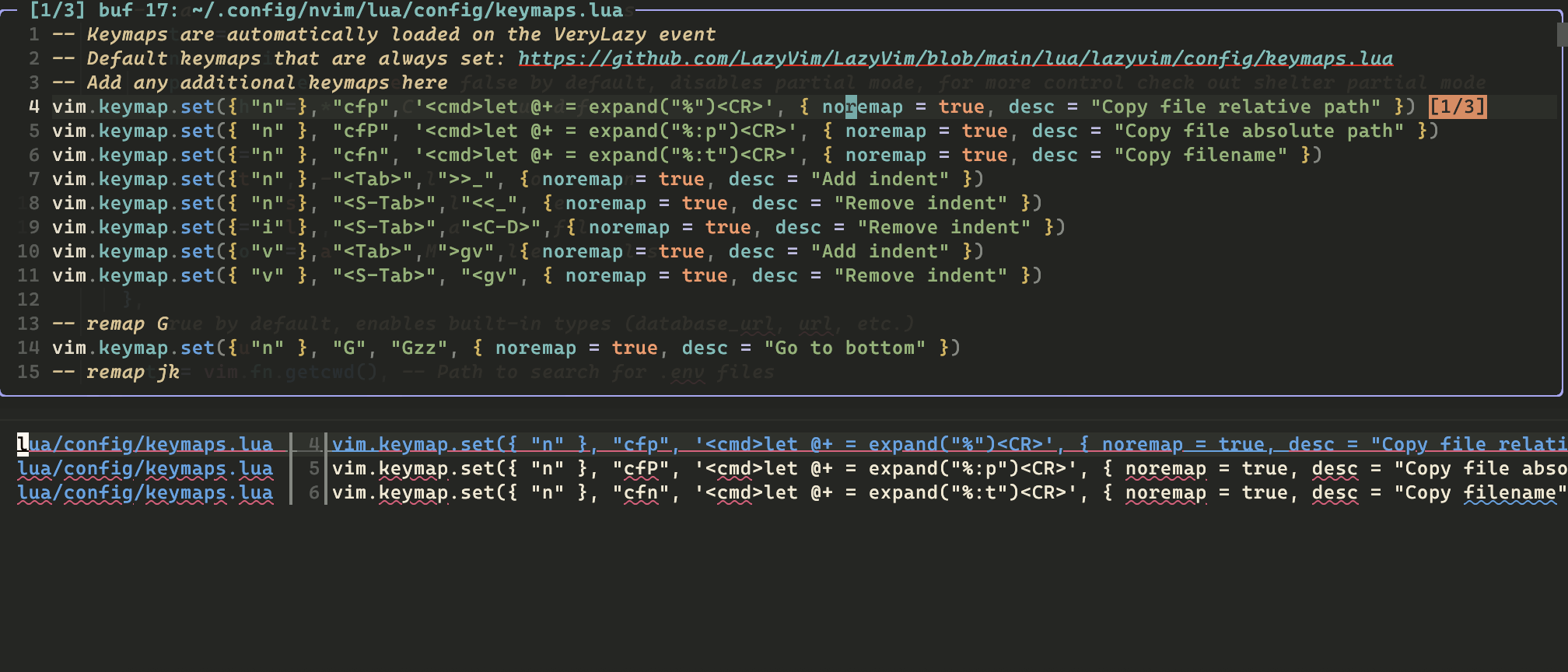
Ever want a little floating window that shows the surrounding lines of the entries in quickfix list?
I've got just that for you!
nvim-bqf is a plugin that enhance the quickfix list with many features, such as:
- Floating window: show the surrounding lines of the entries in quickfix list
- Jump to the next entry: jump to the next entry in quickfix list
- Filter items with signs: filter the entries in quickfix list with signs
- Search and replace: search and replace in the entries in quickfix list
Example from the plugin's README:
Disclaimer: I only use this plugin for its floating window feature. I use quicker.nvim for the rest.
When paired with quicker.nvim, it gives you a nice looking quickfix list like this:
nvim-spider
The w keymap is an important concept in vim. It is used to move between words.
It is very useful for moving the cursor horizontally.
While some people prefer to use f, or leap.nvim, or flash.nvim, which involves inputting characters of the destination to move the cursor horizontally,
I find myself reading characters from the monitor very slow. This makes them often slower than spamming e or w.
Now this works for normal paragraph written in English with each word separated by a space, how about programming languages?
In programming languages, we often use snake_case, camelCase and PascalCase to write variable names, and the w keymap is rendered useless in this case.
Imagine you've got yourself a variable name:
const myVariableName = 10
      ^ cursor here
Now you want to move the cursor to V, but the w keymap won't do the trick. You'd ended up with:
const myVariableName = 10
                     ^ cursor here
It overshoots! Even worse, you are now required to use the painful h, l keymaps to move the cursor character by character.
This has been a pain in the ass for me for a long time, until I found this plugin.
This plugin provides a command that allows you to move the cursor by:
- Subword motion: move the cursor by camelCase, SNAKE_CASE, or kebab-case
- Skipping insignificant punctuation: skip punctuation characters when moving the cursor
It provides a command, where you can either replace the default w, e and b keymaps, or use another key for it.
When installed,
const myVariableName = 10
      ^ cursor here
A w later…,
const myVariableName = 10
        ^ cursor here
Voila! You have moved the cursor by subword motion! Now you can w all the way to downtown!

I spent way more time on this meme than I am willing to admit…
One little downside
This plugin is not built in mind with non-spaced languages, such as Chinese, Japanese, or Korean.
It is not a problem when writing code, but if you write documents in markdown in these languages, it would just refuse to work and jump to the next space / end of line.
I haven't found a solution for this yet, but a workaround is to only enable the plugin for the filetypes you need.
tiny-glimmer.nvim
Feeling a little bit fancy today? I've got you covered!
tiny-glimmer.nvim is a plugin that provides various animations for:
- Yank
- Paste
- Next word
- Previous word
- Undo
- Redo
Example from the plugin's README:
Other than the fancy animations, it actually provides virtual cues to help the user find its location.
When searching for a word, pressing n or N highlights the next word with nice and smooth animations in the buffer.